VS Code vs Android Studio for Flutter: Which IDE Should You Choose in 2026?
Complete comparison between VS Code and Android Studio for Flutter & Dart development in 2026. Explore performance, memory consumption, debugging tools, and AI extensions.
Table of contents14 topics
When developing cross-platform applications with Flutter and Dart, choosing the right Integrated Development Environment (IDE) is one of the most critical workflow decisions you will make.
Google officially supports two premier editors for Flutter: Visual Studio Code (VS Code) and Android Studio (built on JetBrains IntelliJ IDEA platform).
Both provide excellent Flutter SDK integration, but they cater to very different developer priorities in terms of resource consumption, visual tooling, and debugging capabilities.
Here is an objective, practical comparison between VS Code and Android Studio in 2026 to help you select the ideal environment for your development machine.
🧰 Visual Studio Code for Flutter: Lightweight Velocity
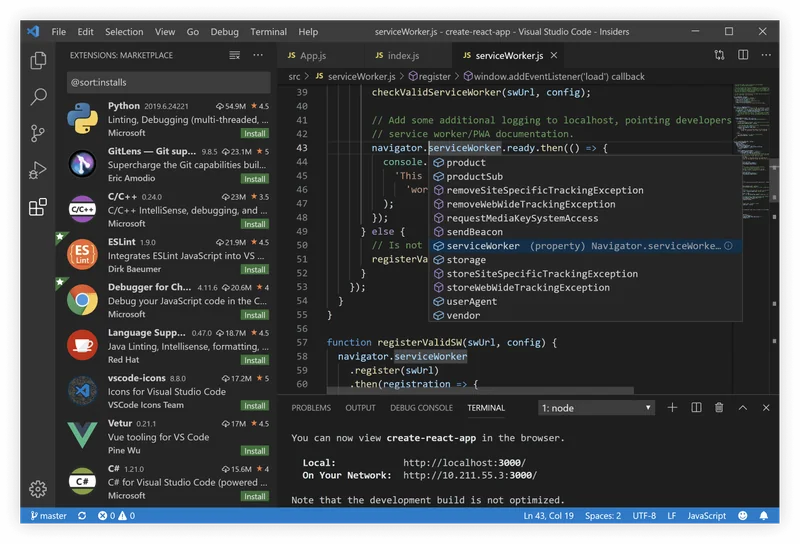
Microsoft’s VS Code has become the most widely used code editor worldwide. When paired with the official Dart and Flutter extensions, it transforms into an agile, minimalist mobile development powerhouse.
Key Advantages:
- Blazing Fast Startup & Low RAM Footprint: VS Code launches in under 2 seconds and typically consumes only 300MB to 600MB of system RAM, making it a joy to use on laptops or battery power.
- Extensive Extension Marketplace: Access thousands of developer extensions, themes, and formatting linters.
- Streamlined UI: Zero visual clutter; your focus remains entirely on your code, widget trees, and terminal output.
- Superior AI Plugin Support: Rapidly evolving AI tools and forks like Cursor, Claude Code, and GitHub Copilot integrate natively with VS Code.
Limitations:
- No Integrated Android Virtual Device (AVD) Manager: You must launch Android emulators via the terminal or external tools.
- Less Granular Native Android Profiling: Deep memory leak inspections or CPU flame-graphs on raw native Android code often require opening the Android subfolder in Android Studio.
🔗 Download VS Code
🔌 Official Flutter Extension for VS Code
🏗️ Android Studio for Flutter: Power & Deep Diagnostics
Built on JetBrains’ battle-tested IntelliJ IDEA platform, Android Studio is the official IDE for native Android development. For Flutter developers, it provides an all-in-one suite loaded with visual visualizers, emulators, and profiling utilities.
Key Advantages:
- Built-in Device & Emulator Management: Effortlessly create, configure, and boot hardware-accelerated Android Virtual Devices (AVDs) with a single click.
- Advanced Memory & CPU Profiler: Comprehensive graphical inspectors for tracking frame rendering times, memory allocations, and network payloads.
- Native Gradle & Manifest Refactoring: When configuring complex native Android dependencies, permissions, or ProGuard obfuscation rules, Android Studio offers superior autocompletion.
- Automated Code Linting: Deep structural code inspections and automated quick-fixes powered by IntelliJ’s inspection engine.
Limitations:
- Heavy Hardware Requirements: Android Studio frequently consumes 2GB to 4GB of RAM on its own—before booting an Android emulator or building a Gradle project.
- Slower Cold Boot: Launching large projects can take 20 to 45 seconds on mid-tier hardware.
🔗 Download Android Studio
📘 Official Flutter Setup Guide for Android Studio
📊 Feature Comparison at a Glance
| Feature / Metric | Visual Studio Code | Android Studio |
|---|---|---|
| RAM Consumption | ~300 MB – 800 MB (Lightweight) | ~2 GB – 4 GB+ (Heavy) |
| Cold Startup Speed | Ultra fast (< 3 seconds) | Moderate to slow (15–45 seconds) |
| Flutter Hot Reload | Instant (~300ms) | Instant (~300ms) |
| Android Emulator Manager | External / CLI triggered | Integrated AVD GUI manager |
| Native Android Configuration | Basic text editing | Comprehensive Gradle & Manifest GUI |
| Customizability & Themes | Infinite community plugins | Rich JetBrains marketplace |
| AI Integration | Best-in-class (Cursor, Copilot, Cline) | Gemini Code Assist, Copilot |
🏁 The Verdict: Which IDE Should You Choose?
The decision between VS Code and Android Studio boils down to your hardware specifications and day-to-day workflow:
- Choose VS Code if: You prioritize speed, low battery consumption, clean interfaces, and rapid hot-reloading on day-to-day Flutter UI and state management logic.
- Choose Android Studio if: You work on apps requiring heavy native Android Java/Kotlin integration, complex Gradle builds, or deep hardware profiling.
💡 The Senior Developer Workflow in 2026:
In practice, most senior mobile engineers use a hybrid strategy:
- Keep VS Code (or AI-native environments like Cursor) open for 95% of daily Flutter and Dart coding.
- Keep Android Studio installed in the background strictly to manage Android SDK licenses, download emulator images, and resolve occasional native Gradle configuration errors.
Frequently Asked Questions
Does Flutter Hot Reload perform faster in VS Code?
Hot Reload performance is identical in both IDEs because it is orchestrated by the underlying Dart VM, not the text editor. However, VS Code feels snappier overall due to lower interface overhead.
Can I run iOS simulators from both editors on macOS?
Yes. Both VS Code and Android Studio allow you to launch and attach to iOS Simulators with one click on macOS machines with Xcode installed.
Is VS Code sufficient for building production Flutter apps?
Yes. Thousands of commercial Flutter applications are written, tested, and published to the App Store and Google Play entirely within VS Code.
Explore Mobile Engineering Services
Looking for an experienced engineer to architect your mobile application or mentor your development team?
Learn more about our cross-platform mobile app development services or contact David Marro directly.